Showing posts with label Java tutorial. Show all posts

Tuesday, October 16, 2012

Getting Started with Java


Java Architecture


The Java environment is composed of a number of system components. You use these components at compile time to create the Java program and at run time to execute the program. Java achieves its independence by creating programs designed to run on the Java Virtual Machine rather than any specific computer system.

After you write a Java program, you use a compiler that reads the statements in the program and translates them into a machine independent format called bytecode.
Bytecode files, which are very compact, are easily transported through a distributed system like the Internet.
The compiled Java code (resulting byte code) will be executed at run time.
Java programs can be written and executed in two ways:

Stand-alone application (A Java Swing Application)
Applet which runs on a web browser (Example: Internet Explorer)

Java source code

A Java program is a collection of one or more java classes. A Java source file can contain more than one class definition and has a .java extension. Each class definition in a source file is compiled into a separate class file. The name of this compiled file is comprised of the name of the class with .class as an extension. Before we proceed further in this section, I would recommend you to go through the ‘Basic Language Elements’.

Below is a java sample code for the traditional Hello World program. Basically, the idea behind this Hello World program is to learn how to create a program, compile and run it. To create your java source code you can use any editor( Text pad/Edit plus are my favorites) or you can use an IDE like Eclipse.

public class HelloWorld {
public static void main(String[] args) {
System.out.println("Hello World");
}//End of main
}//End of HelloWorld Class

Output
Hello World

ABOUT THE PROGRAM

I created a class named “HelloWorld” containing a simple main function within it. The keyword class specifies that we are defining a class. The name of a public class is spelled exactly as the name of the file (Case Sensitive). All java programs begin execution with the method named main(). main method that gets executed has the following signature : public static void main(String args[]).Declaring this method as public means that it is accessible from outside the class so that the JVM can find it when it looks for the program to start it. It is necessary that the method is declared with return type void (i.e. no arguments are returned from the method). The main method contains a String argument array that can contain the command line arguments. The brackets { and } mark the beginning and ending of the class. The program contains a line ‘System.out.println(“Hello World”);’ that tells the computer to print out on one line of text namely ‘Hello World’. The semi-colon ‘;’ ends the line of code. The double slashes ‘//’ are used for comments that can be used to describe what a source code is doing. Everything to the right of the slashes on the same line does not get compiled, as they are simply the comments in a program.

Java Main method Declarations

class MainExample1 {public static void main(String[] args) {}}
class MainExample2 {public static void main(String []args) {}}
class MainExample3 {public static void main(String args[]) {}}

All the 3 valid main method’s shown above accepts a single String array argument.

Compiling and Running an Application

To compile and run the program you need the JDK distributed by Sun Microsystems. The JDK contains documentation, examples, installation instructions, class libraries and packages, and tools. Download an editor like Textpad/EditPlus to type your code. You must save your source code with a .java extension. The name of the file must be the name of the public class contained in the file.

Steps for Saving, compiling and Running a Java

Step 1:Save the program With .java Extension.
Step 2:Compile the file from DOS prompt by typing javac <filename>.
Step 3:Successful Compilation, results in creation of .class containing byte code
Step 4:Execute the file by typing java <filename without extension>

Java Development Kit

The Java Developer’s Kit is distributed by Sun Microsystems. The JDK contains documentation, examples, installation instructions, class libraries and packages, and tools

Javadoc

The javadoc tool provided by Sun is used to produce documentation for an application or program,

Jar Files

A jar file is used to group together related class files into a single file for more compact storage, distribution, and transmission.

Monday, October 15, 2012

About Java : Basics


About Java


Java is a simple and yet powerful object oriented programming language and it is in many respects similar to C++. Java was given birth at Sun Microsystems, Inc. in 1991. Java was conceived by James Gosling, Patrick Naughton, Chris Warth, Ed Frank, and Mike Sheridan at Sun Microsystems, Inc. It was developed to provide a platform-independent programming language.

Platform independent

Unlike many other programming languages including C and C++ when Java is compiled, it is not compiled into platform specific machine, rather into platform independent byte code. This byte code is distributed over the web and interpreted by Java virtual Machine (JVM) on whichever platform it is being run.
Java Virtual Machine

What is the Java Virtual Machine? What is its role?

Java was designed with a concept of ‘write once and run everywhere’. Java Virtual Machine plays the central role in this concept. The Java Virtual Machine (JVM) is the environment in which Java programs execute. It is a software that is implemented on top of real hardware and operating system.
When Java source code (.java files) is compiled, it is translated into Java bytecodes and then placed into (.class) files. The JVM executes Java bytecodes. So Java bytecodes can be thought of as the machine language of the JVM. A Java virtual machine can either interpret the bytecode one instruction at a time or the bytecode can be compiled further for the real microprocessor using what is called a just-in-time compiler. The JVM must be implemented on a particular platform before compiled Java programs can run on that platform.

Java has powerful features. The following are some of them:-

Java is object oriented

Since Java is an object oriented programming language it has following advantages:
Reusability of Code
Emphasis on data rather than procedure
Data is hidden and cannot be accessed by external functions
Objects can communicate with each other through functions
New data and functions can be easily added

Java is Distributed

With extensive set of routines to handle TCP/IP protocols like HTTP and FTP java can open and access the objects across net via URLs.

Java is Multithreaded

One of the powerful aspects of the Java language is that it allows multiple threads of execution to run concurrently within the same program A single Java program can have many different threads executing independently and continuously. Multiple Java applets can run on the browser at the same time sharing the CPU time.

Java is Secure

Java was designed to allow secure execution of code across network. To make Java secure many of the features of C and C++ were eliminated. Java does not use Pointers. Java programs cannot access arbitrary addresses in memory.

Garbage collection

Automatic garbage collection is another great feature of Java with which it prevents inadvertent corruption of memory. Similar to C++, Java has a new operator to allocate memory on the heap for a new object. But it does not use delete operator to free the memory as it is done in C++ to free the memory if the object is no longer needed. It is done automatically with garbage collector.

Application of Java

Java has evolved from a simple language providing interactive dynamic content for web pages to a predominant enterprise-enabled programming language suitable for developing significant and critical applications. Today, Java is used for many types of applications including Web based applications, Financial applications, Gaming applications, embedded systems, Distributed enterprise applications, mobile applications, Image processors, desktop applications and many more.

Thursday, September 27, 2012

Setting the JAVA_HOME Environment Variable(Class Path) in Windows

Environment variables are global system variables accessible by all the processes running under the Operating System (OS). Environment variables are useful to store system-wide values such as the directories to search for the executable programs, the OS version, and the location of Windows binaries.After Installation of Java, you cannot compile programs until you have directory to your path environment variable if not already present, otherwise the tools won't be found when you try to compile and run programs. So you need to Set up Class path First. This tutorial explains how you can do that.If you want help on how to download or install Jdk, you can Read It Here

Setting Java Class Path

Classpath in Java is path to directory or list of directory which is used byClassLoaders to find and load class in Java program.
Here is Step by Step guide for setting Java Classpath in Windows
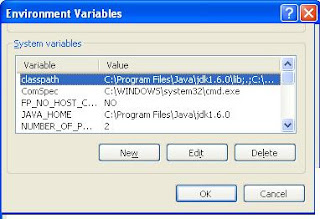
  • Go to Environment variable window in Windows by pressing "Windows + Pause" > Advanced > Environment variable " or you can go from right click on my computer than choosing properties and then Advanced and then Environment variable this will open Environment variable window.How to se Java Classpath in windows
  • Now specify your environment variable CLASSPATH and put the value of your JAVA_HOME\lib and also include current directory by including (dot or period sign).
  • Now to check the value of Java classpath in windows type "echo %CLASSPATH" in your DOS command prompt and it will show you the value of directory which are included in CLASSPATH.

    You can also set classpath in windows by using DOS command like :

    set CLASSPATH=%CLASSPATH%;JAVA_HOME\lib;
     
  • This way you can set classpath in Windows XP, windows 2000 or Windows 7 and 8, as they all come with command prompt.

Setting JAVA_HOME to JDK Installation Directory

JRE (Java Runtime) is needed for running Java programs. JDK (Java Development Kit) is needed for writing and running Java programs. JDK includes JRE plus development tools such as Java compiler.

Set JAVA_HOME to your JDK installation directory (e.g., "c:\Program Files\java\jdk1.6.0_xx"). JAVA_HOME is needed for running Tomcat and many other Java applications. JAVA_HOME is the directory you install your JDK.

For windows users (in Vista / Windows 7), you can set the JAVA_HOME permanently via "Control Panel" > "System" > "Advanced system settings". Switch to "Advanced" tab > "Environment variables" and choose "System Variables" (for all users) or "User Variables" (for this login user only). To create JAVA_HOME, choose "New". In variable "Name", enter " JAVA_HOME" and in variable "Value", provide the JDK installation directory.

You can optionally set JRE_HOME to the JRE base directory (e.g., "c:\Program Files\java\jre1.6.0_xx")

After setting all above environment variable you can compile and run your Java application freely.